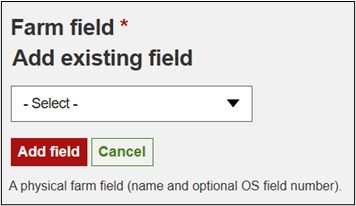
Once you have selected a KPI to add data to, click the “Add data” button on the right-hand side under the Actions column.
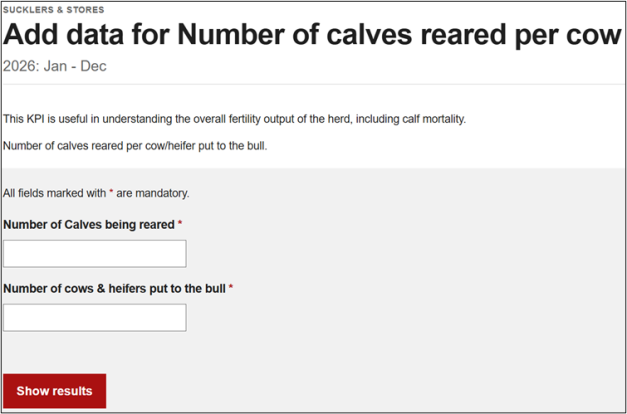
There are various types of KPI data entry screens throughout the tool, some examples are below.
If while entering data, you get an error message appear this will often be due to the calculated figure being outside the parameters for the KPI. Double-check that the figures you have entered are accurate, and are in the correct format, for example hectares not acres, months not days, tonnes not kilos etc.
- Simple data entry with one or more fields to enter data. Fields marked with * are mandatory fields. Once data is entered, click “Show results”.
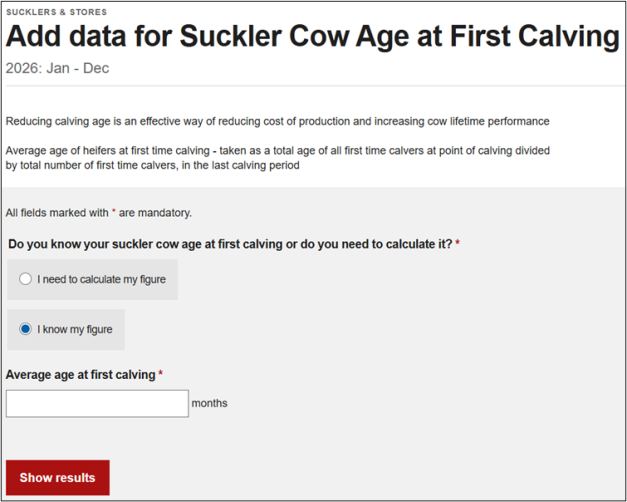
- KPIs where there is an option to input your figure directly or have the tool calculate it for you.
In selecting your preferred option, the correct field(s) will display for you to enter data. Then click “Show results”.
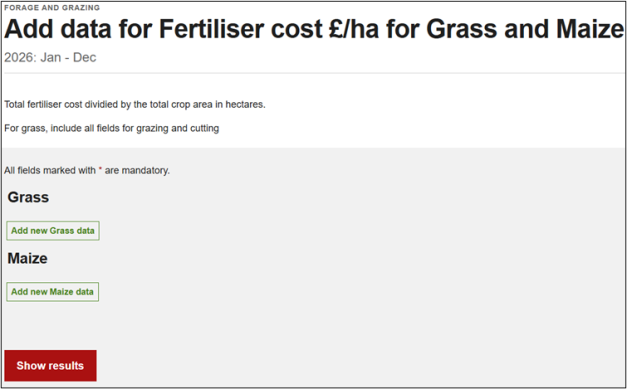
- KPIs offering more than one category for selection e.g. Grass and Maize for a Forage & Grazing KPI, or Bacon, Cutter, Pork for a Pig KPI – you can analyse more than 1 item within a single KPI
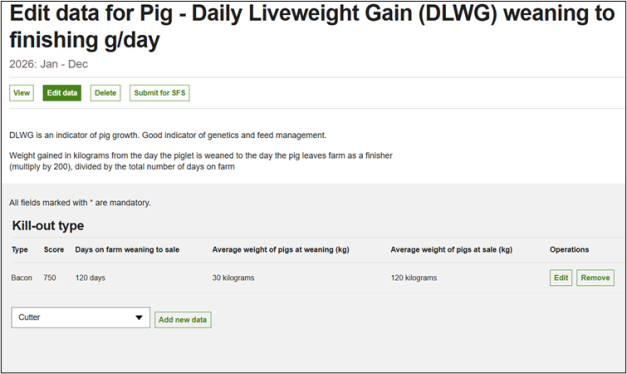
- Field specific KPIs – this is where you can add data to field parcels on your farm for varying Environmental indicators.
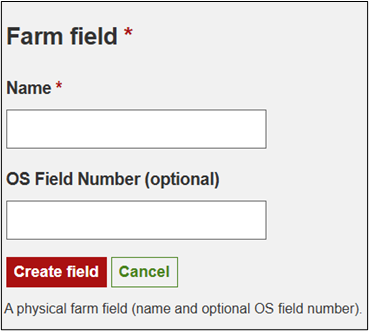
This type of KPI will firstly need a new field parcel to be added.
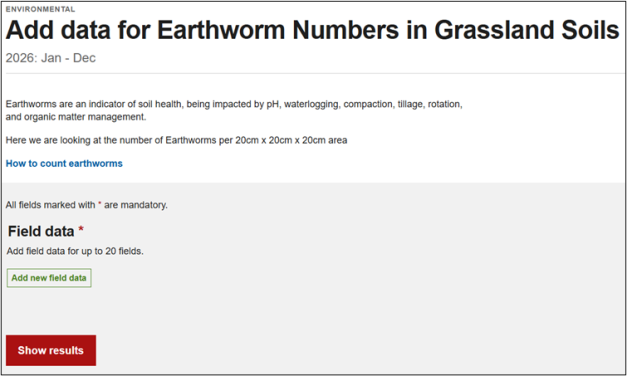
Once a field parcel has been added once, you select it from the existing field parcels list in future KPIs.
To add new fields:
To select existing fields: